
Introduction
Windows 11 has introduced many modern features, improved security options, and a redesigned user experience. However, over time, many users notice that their computers become slower due to unnecessary applications, background processes, outdated drivers, and limited system resources.
A slow computer can affect productivity, gaming performance, and tasks. Opening applications, switching between windows, and completing work can become frustrating when the system does not perform smoothly.
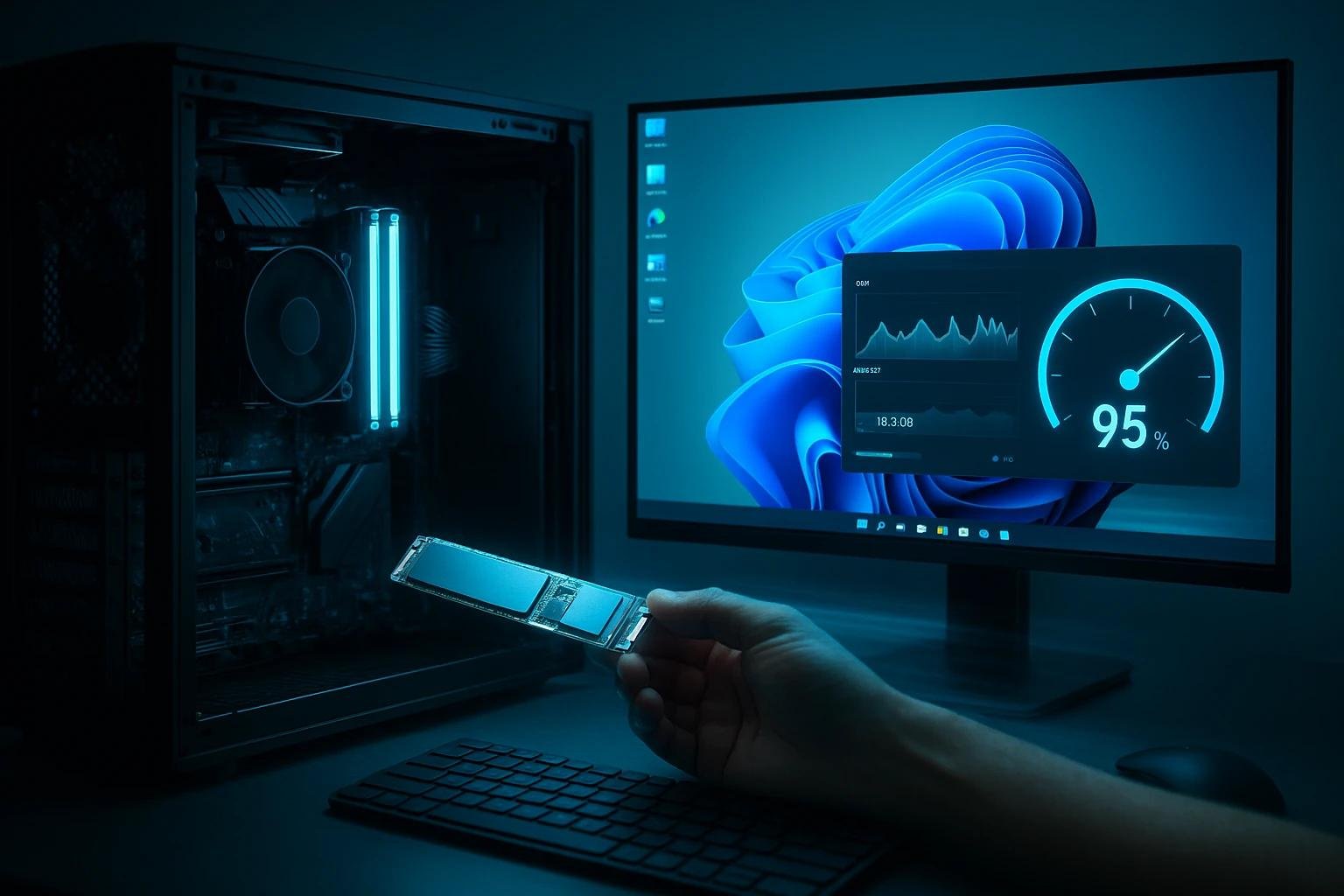
Fortunately, there are several ways to improve Windows 11 performance without immediately upgrading hardware. By adjusting system settings, managing applications, and maintaining the computer properly, users can achieve faster and more reliable performance.
optimizing Windows 11 has become easier because Microsoft continues to improve system management features. With the right performance tips, both beginners and advanced users can make their PCs run more efficiently.
Understanding Windows 11 Performance
Windows 11 performance depends on several factors, including hardware specifications, installed applications, storage space, system settings, and background activities. Even powerful computers can become slower when they are not maintained properly.
The operating system manages many processes automatically, but users still need to optimize certain settings to achieve the best performance.
Understanding what affects computer speed is the first step toward improving Windows 11 performance.
Why Does Windows 11 Become Slow Over Time?
A new Windows installation usually runs smoothly because it has fewer applications and background processes. However, as users install more software, store more files, and run more programs, system performance can gradually decrease.
Programs running in the background may consume memory and processing power, leaving fewer resources available for important tasks.
Temporary files, outdated drivers, and unnecessary startup applications can also contribute to slower performance.
Factors That Affect Windows 11 Speed
Several components influence how fast Windows 11 operates. The processor, RAM, storage drive, graphics card, and system settings all play important roles.
A computer with limited hardware may struggle with demanding applications, while a well-maintained system can perform better even with moderate specifications.
Regular optimization helps Windows 11 use available resources more effectively.
Best Windows 11 Performance Tips
Improving Windows 11 performance does not always require expensive upgrades. Many improvements can be achieved by changing settings, removing unnecessary files, and managing system resources.
The following tips can help users create a faster and smoother Windows experience.
Disable Unnecessary Startup Programs
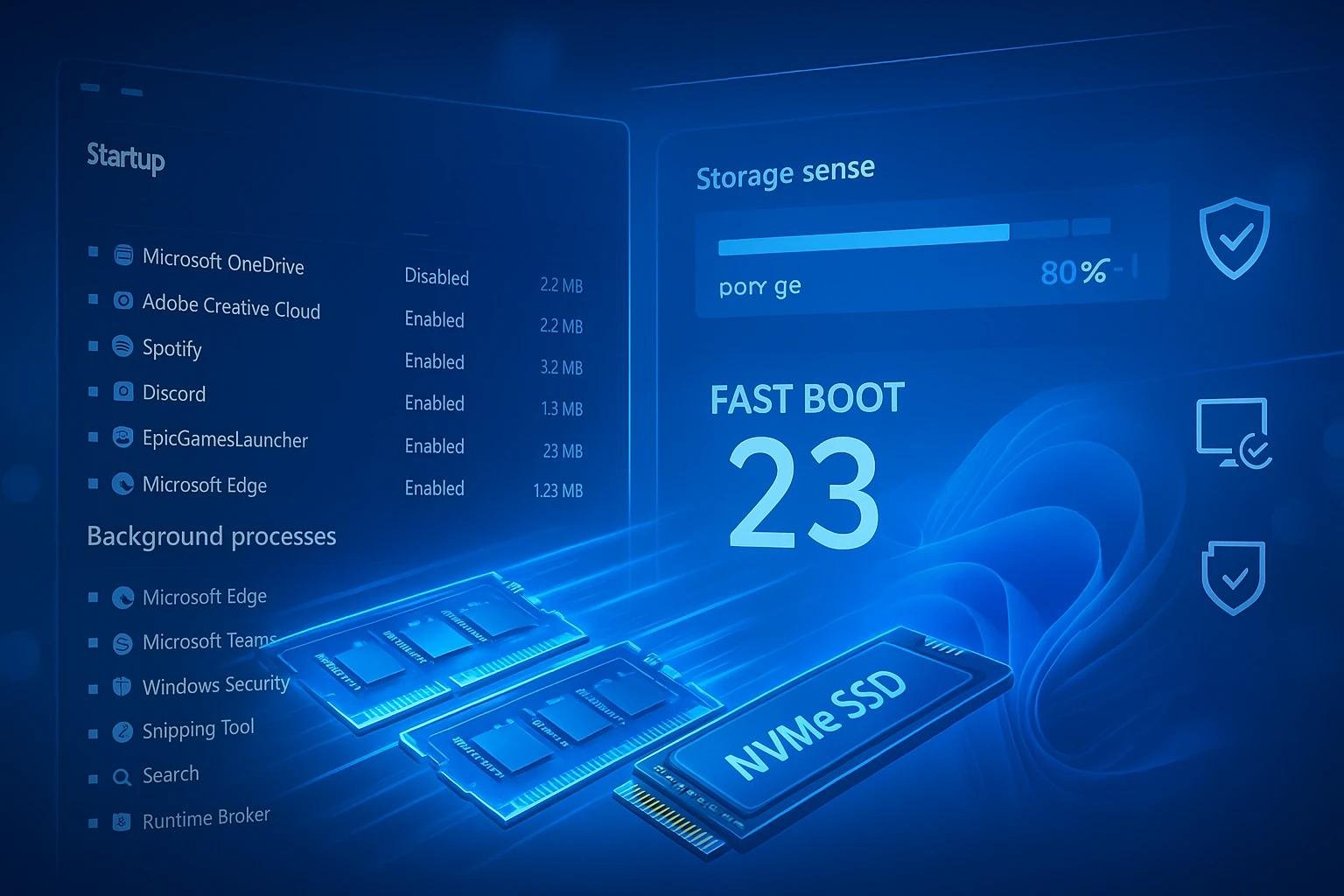
Many applications automatically start when Windows launches. While some startup programs are necessary, others consume system resources without providing immediate value.
Reducing the number of startup applications can significantly improve boot time and allow the computer to become ready faster after turning on.
Users can manage startup programs through Windows settings and disable applications they do not need immediately.
Why Startup Programs Affect Performance
When multiple programs start at the same time as Windows, they compete for memory and processing power. This can increase startup time and slow down the overall system.
Applications such as update managers , communication tools, and background utilities often run automatically even when they are not being used.
Managing these programs allows Windows to focus resources on important tasks.
How to Manage Startup Applications
Users can open Windows settings and review the list of applications that launch during startup. Disabling unnecessary programs can improve system responsiveness.
However, users should avoid disabling important security software or essential system applications.
Clean Up Storage Space
A full storage drive can negatively affect Windows 11 performance. When the system has limited free space, it may become slower because Windows needs space for temporary files and system operations.
Removing unnecessary files can improve performance and create more room for important data.
Regular storage maintenance is an important part of keeping a computer healthy.
Remove Temporary Files
Windows creates temporary files during normal operation, but these files can accumulate over time.
Using built-in storage cleanup tools helps remove unnecessary data and improve available storage space.
Users should regularly check temporary files, downloads, and unused applications.
Uninstall Unused Applications
Many users install programs that they rarely use. These applications may take storage space and sometimes run background processes.
Removing unused software helps improve system organization and reduces unnecessary resource usage.
Update Windows and Drivers Regularly
Keeping Windows 11 updated is important for both security and performance. Microsoft regularly releases updates that improve system stability and fix performance issues.
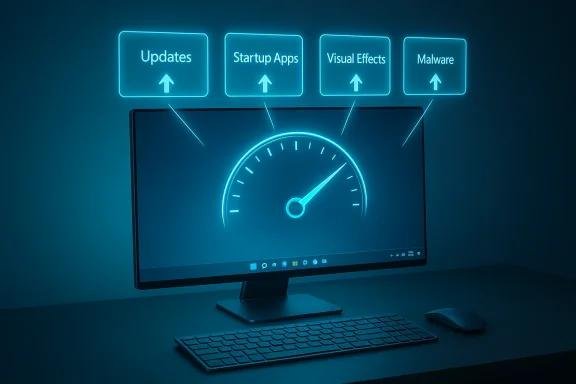
Hardware drivers also play an important role because outdated drivers can cause compatibility problems and reduced performance.
Regular updates help ensure that hardware and software work together properly.
Benefits of Windows Updates
Windows updates often include improvements that make the operating system more reliable. They may improve security, fix bugs, and optimize system performance.
Ignoring updates for a long time can lead to performance and security problems.
Importance of Updated Drivers
Drivers allow Windows to communicate with hardware components such as graphics cards, printers, and network devices.
Updated drivers can improve speed, compatibility, and performance, especially for gaming and creative applications.
Adjust Windows 11 Visual Effects
Windows 11 includes many visual features such as animations, transparency effects, and modern interface designs. While these features improve appearance, they can use system resources.
Adjusting visual effects can help improve performance, especially on older computers.
Reduce Animation Effects
Animations make Windows feel smoother, but they require additional processing power.
Disabling unnecessary animations can make the system feel faster and more responsive.
Optimize Appearance Settings
Users can adjust performance settings to prioritize speed instead of appearance.
This can be helpful for computers with limited RAM or older processors.
Improve Windows 11 Security and Maintenance
Security and performance are closely connected. Malware, unnecessary applications, and unsafe downloads can reduce system speed.
Maintaining proper security practices helps protect both performance and personal information.
Use Reliable Security Software
Security tools help detect harmful programs that may slow down the system.
Regular scans can identify threats and keep Windows running smoothly.
Perform Regular System Maintenance
Simple maintenance tasks such as restarting the computer, checking storage, and updating software can improve long-term performance.
Consistent maintenance prevents many common performance problems.
Advanced Windows 11 Performance Improvements
Users who want additional improvements can apply advanced optimization methods. These steps require more attention but can provide better results.
Advanced settings should be changed carefully to avoid affecting important system functions.
Manage Background Applications
Many applications continue running even when users are not actively using them. These background processes consume memory and processing power.
Limiting unnecessary background activity can improve system responsiveness.
Users should review which applications are allowed to run in the background.
Upgrade Hardware When Necessary
Software optimization can improve performance, but hardware limitations cannot always be solved through settings.
Upgrading components such as RAM or switching from a traditional hard drive to an SSD can create significant improvements.
Hardware upgrades are especially useful for users running demanding applications.
Windows 11 Performance Tips for Students Beginners, and Businesses
Different users have different performance needs depending on how they use their computers.
Optimizing Windows 11 can help students, beginners, and businesses complete tasks more efficiently.
For Students
Students can improve performance by removing unused programs, managing storage, and keeping their systems updated.
A faster computer helps with online classes, research, and productivity applications.
For Beginners
Beginners can use simple optimization methods such as cleaning storage, disabling unnecessary startup programs, and updating Windows.
These steps require little technical knowledge and can improve daily performance.
For Businesses
Businesses can optimize Windows 11 systems to improve employee productivity and reduce technical issues.
Proper maintenance helps companies maintain reliable computers for daily operations.
FAQs
How can I make Windows 11 faster?
You can improve Windows 11 speed by disabling unnecessary startup programs, cleaning storage, updating drivers, and adjusting performance settings.
Does Windows 11 slow down older computers?
Windows 11 may run slower on older hardware that does not meet recommended requirements. Optimizing settings can help improve performance.
Should I upgrade RAM for better Windows 11 performance?
Increasing RAM can improve multitasking performance, especially when running multiple applications at the same time.
Does deleting files improve computer speed?
Removing unnecessary files can improve storage availability and help Windows operate more efficiently.
Is it safe to disable startup programs?
Yes, disabling unnecessary startup programs is generally safe, but users should avoid turning off important system or security applications.
Conclusion
Windows 11 performance can be improved through proper maintenance, smart settings adjustments, and regular system updates. Users do not always need expensive hardware upgrades to achieve better speed.
Simple actions such as managing startup programs, cleaning storage, updating drivers, and reducing unnecessary background activity can make a noticeable difference.
Whether you are a student, beginner, or business user, optimizing Windows 11 helps create a faster, smoother, and more reliable computing experience. As technology continues to improve, regular performance management will remain important for getting the best results from modern computers.